Deployment
Frameworks and Tools
The pipeline process uses 4 frameworks to facilitate deployment. These are all quite evident and self explanatory.
| Framework/Tool | Purpose |
|---|---|
| Make | Used to grouping/sequencing bash commands for various build and deploy actions. Easily callable from Github Actions workflows |
| Docker | Used for creating environment-agnostic application images that can be uploaded to remote image repositories, and pulled/run by AWS resources |
| Github Actions | Used for running the deployment process in the cloud and with an isolated environment, based off of Git related triggers or manually executed |
| AWS CLI | Used for connecting to AWS resources via shell commands, allowing support for uploading docker images to AWS repositories, tagging or updating AWS resources, or triggering application rebuilds |
CI/CD Pipeline
The CI/CD pipeline is relatively straightforward, but does have a couple of moving pieces that are hard to find if you don't know where to look. This section will cover the exact steps that each application goes through, from initiating a deployment, to ending up on AWS.
Triggering the Pipeline Runner
The deployment process is triggered from the Github Actions panel manually, with a specified branch for the source code. See Usage.
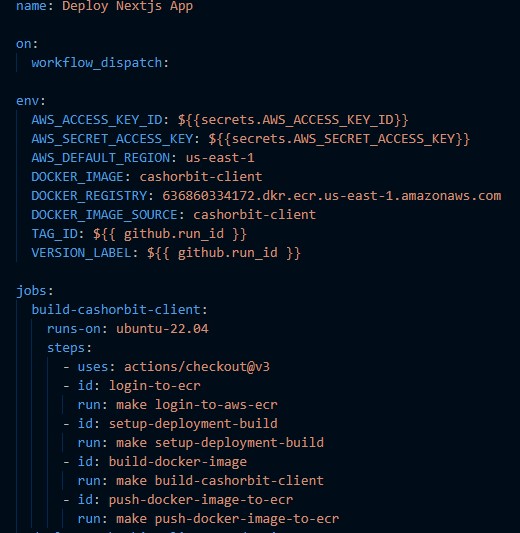
From here, Github Actions will begin running the commands specified in the .github/workflows/<target-environment> related to the specific action chosen. Github will run each command sequentially, and exit in the event that any command fails. It uses the commands defined in the Makefile to allow command templating for reuse, environment variable injection for modifying command targets, and separating individual steps into logical groups for easy reference and self-documentation.
Makefile Commands
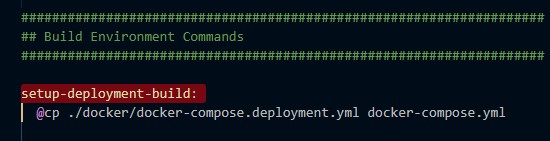
From within the Github Actions workflow, various Makefile commands will be executed. Using the above image as an example, it will first run the command named login-to-aws-ecr which will grant authentication to the current shell from the AWS elastic container registry. This allows the runner to push resources to AWS as well as issue commands to update environments. The next command configures the build mode for the application itself, by using the corresponding 'production' dockerfiles and docker-compose

It then builds the docker images with the configurations specified in the docker files, tags the image, and pushes the image to the corresponding AWS elastic container registry. It finishes the deployment process by issuing an update command to the responsible Elastic Beanstalk environment.
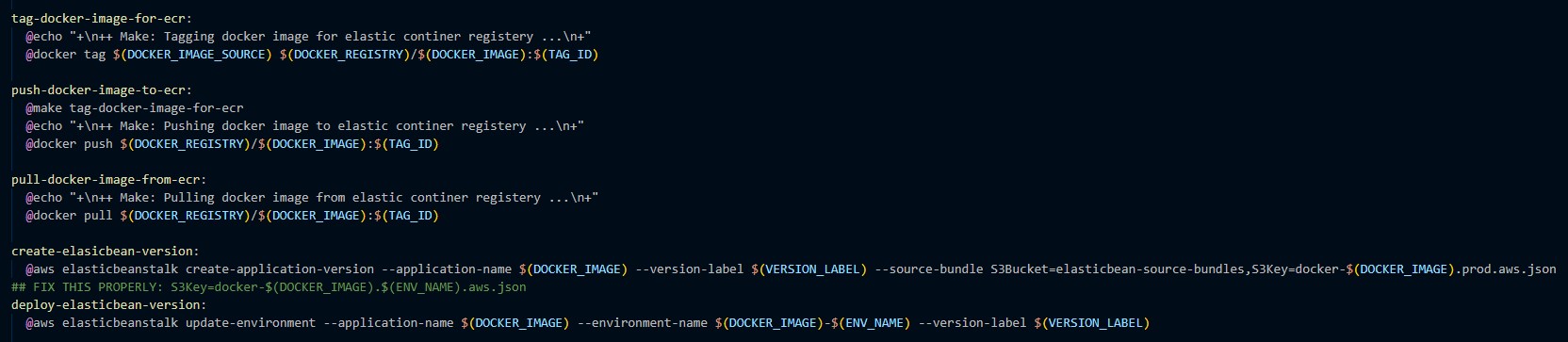
The source of the bound environment variables (shown with the ${ VARIABLE_NAME } notation) you see in the makefile can be found in the Github Actions file
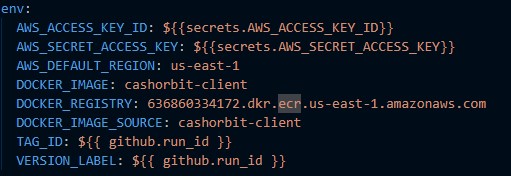
and any variables that are bound from within this file (shown with the ${{ VARIABLE_NAME }} notation) are provided by the Github Actions runner itself.
Docker Images
During the build process, a docker image is generated. This image contains all of the source code, default run commands, and in some cases, explicitly bound application-level environment variables that the apps need to run. the cashorbit-client image for example, needs these variables explicitly set in the Dockerfile due to a limitation with React and how it looks for variables on the server process. The other apps are capable of reading variables provided directly to the AWS environment itself, which will be covered in the next section.
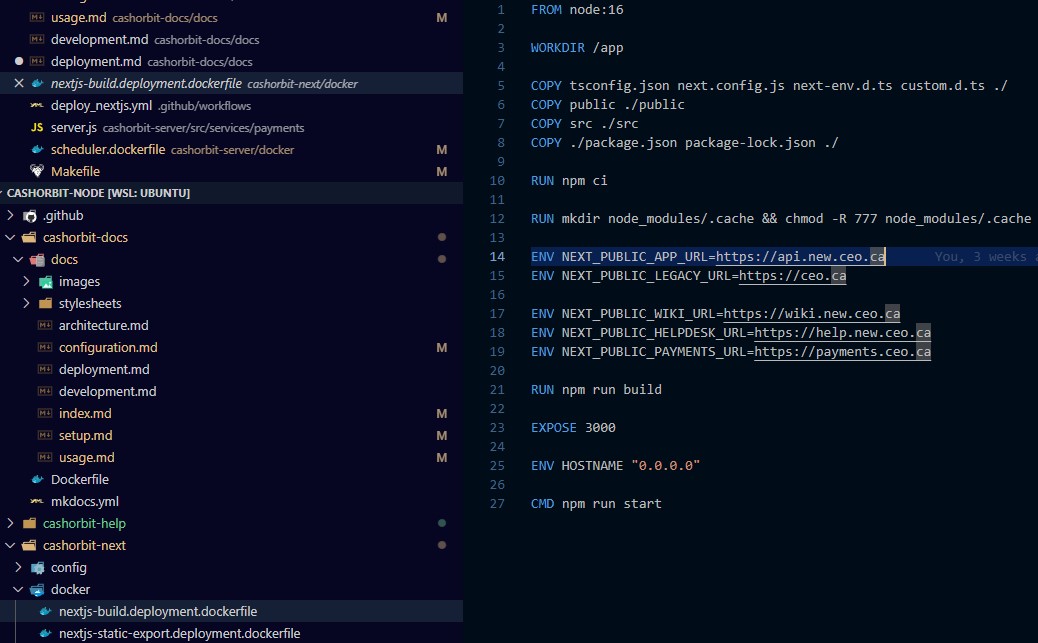
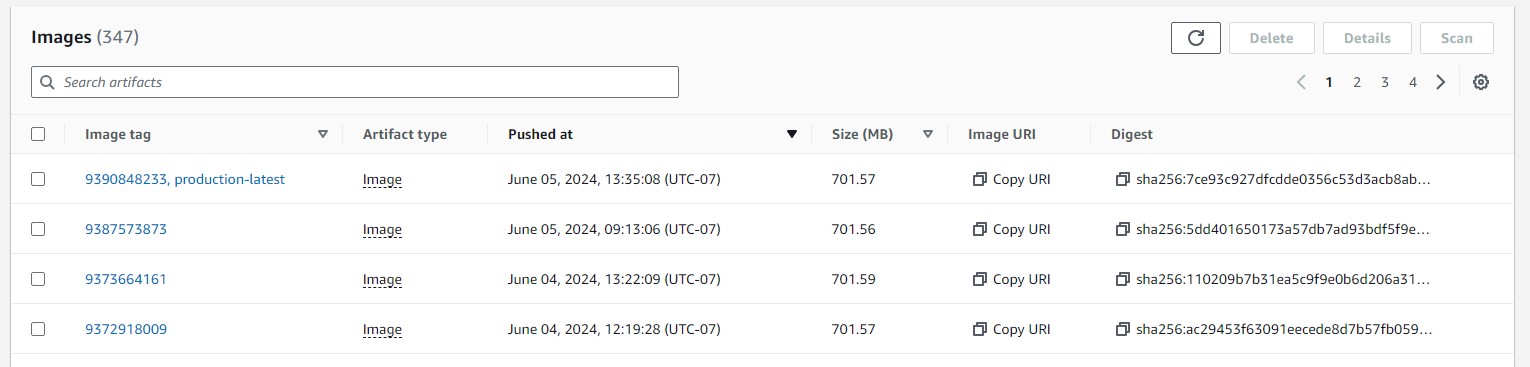
This image is then tagged with a UUID and 'production-latest', then pushed to AWS ECR by the command in the makefile. Additional information on the usage of Docker and how images are built can be found in Configuration, or Docker's documentation directly, Here.
AWS CLI
The AWS CLI is responsible solely for interfacing with AWS resources from inside the pipeline runner process. It allows for uploading resources to AWS and manipulating AWS resources programatically. Details on the AWS CLI list of available commands, and documentation on the ones used by the makefile can be found Here
AWS Resources
During the deployment process, various AWS resources are referenced and have actions issued to them. This section will cover the resources referenced, how they are referenced, and where various resources are located.
Elastic Container Registry
The Elastic Container Registry is a collection of all docker images that have been pushed to AWS. The ECR allows for tagging these images so that they can be referenced by the Elastic Beanstalk environment when it is told to rebuild with a specific image, as well as sorting images by groups, belonging to different applications.
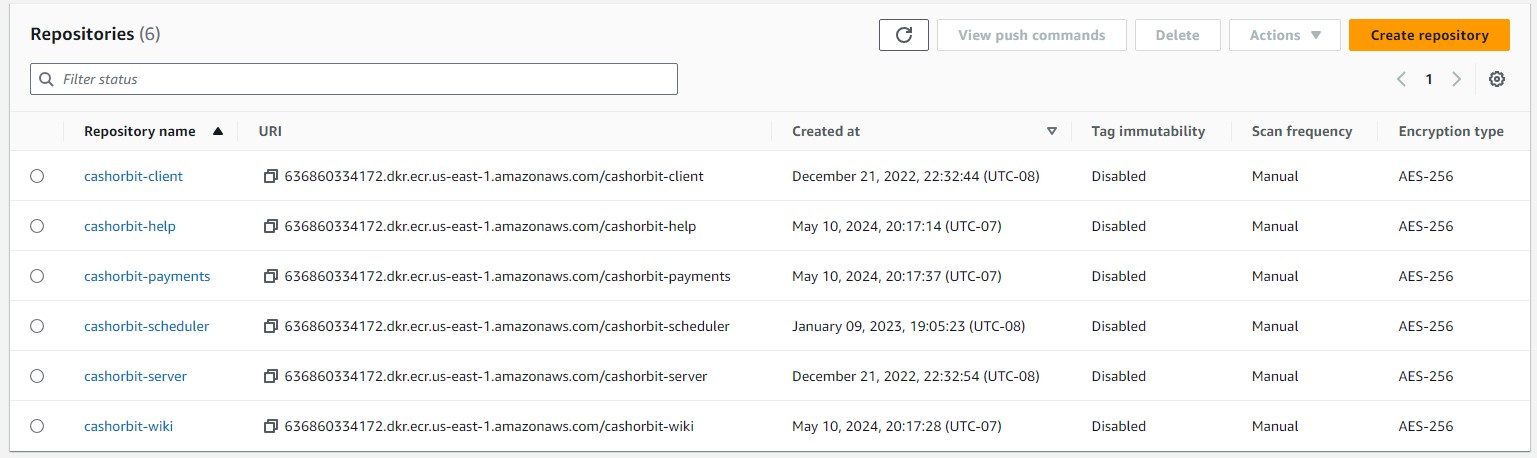
Our Elastic Container Registry repositories can be found Here.
When an image is pushed the Makefile command is told to push the image to a specific repository based on the environment variable binding provided in the Github Actions file. See Makefile Commands on this page, specifically the push-docker-image-to-ecr command and the bound variable {DOCKER_REGISTRY} provided in the actions file. This allows us to ensure that the source of the deployment (the actions file) is the one responsible for dictating which repository the image is pushed to, ensuring that API images always end up in the API repository, Help images in the Help repository, etc.
The image is also tagged with a unique production-latest tag. When created, the repository is set up to only allow unique tags. This means that whenever a new image is pushed with the production-latest tag, it removes it from the previous 'latest' image. With this, we can ensure that we are always targeting the newest image available via the aforementioned tag.
Elastic Beanstalk
When deploying the application, we issue a command to AWS to create a new Application Version for our app. We tell AWS which application we want to create a new version for, using environment variables bound in to the Makefile from the Github Actions file, identically to the previous section. See Makefile Commands on this page, specifically the create-elasticbean-version command and the bound variable {DOCKER_IMAGE} provided in the actions file. This will create a new version that can be deployed programatically from the Actions file.

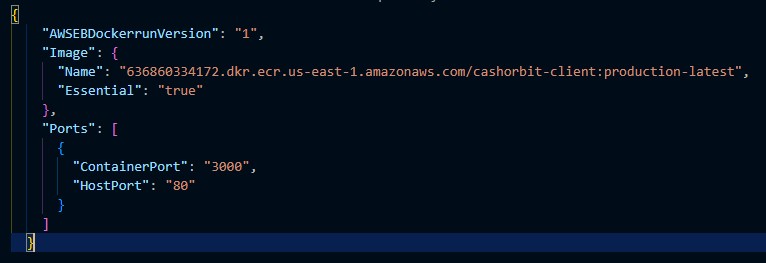
It does this by referencing the image pushed to ECR by the production-latest tag. We tell AWS to configure this version using a file called the dockerrun.aws.json which is essentially just a configuration file for the Elastic Beanstalk environment. It contains information about which image it needs to get, from which repository, which ports need to be open for that image, and other basic configuration options.
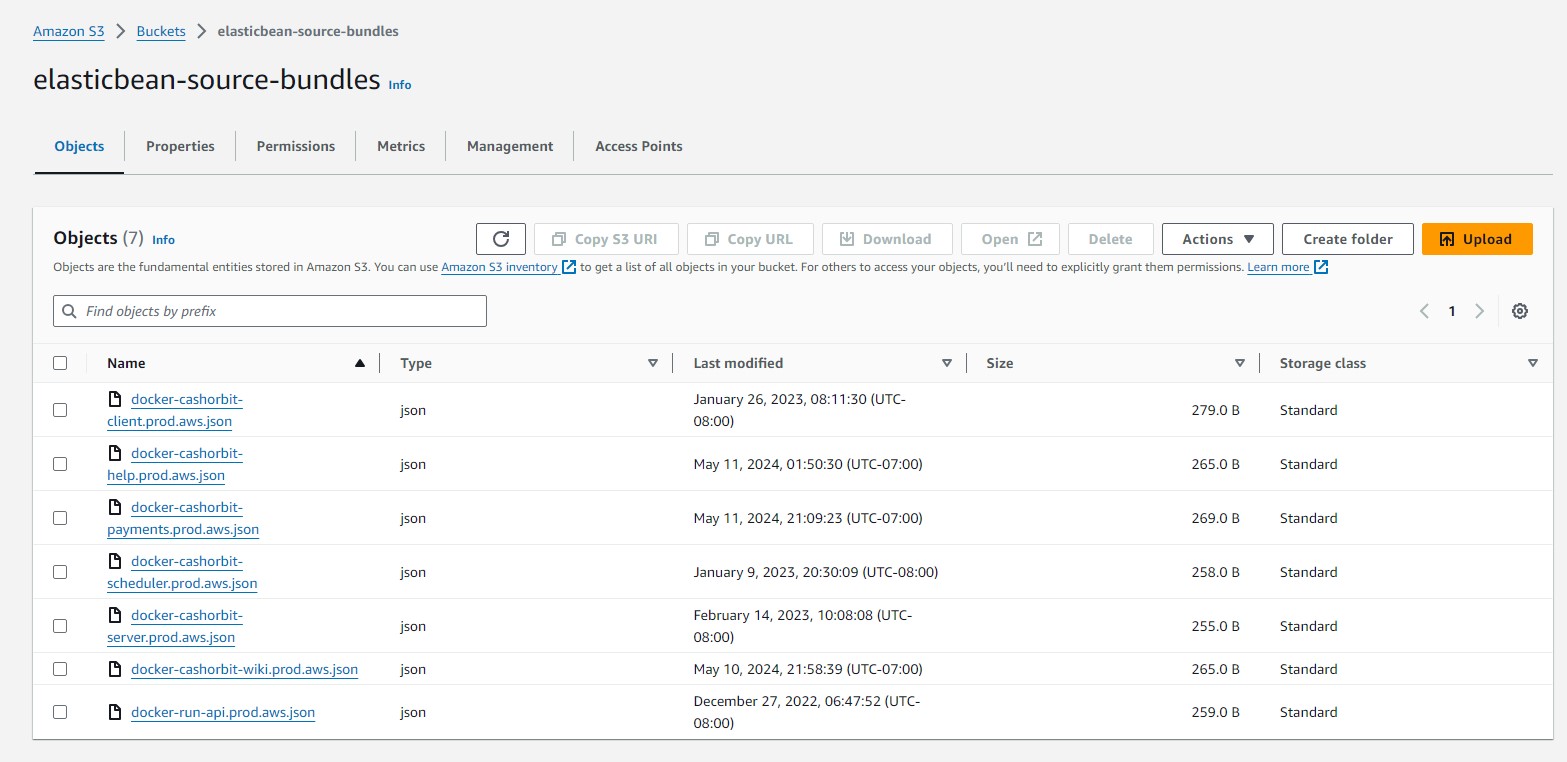
This configuration file is stored in an s3 bucket named elasticbean-source-bundles. It is manually created and uploaded here, and has had the source repository and image tag hard-coded. In the future, we will provide additional versions of this dockerrun to support additional environment targets such as development and staging. They will be named accordingly and will reference the appropriate tag in the registry.
Finally, an update-environment command is issued to the appropriate Elastic Beanstalk environment. This tells a specific environment that there is a new version available, and to completely rebuild with the provided image and configuration.
From here, it is an identical process to running a docker image locally. It will expose specific ports, and AWS will automatically map the HTTP or HTTPS listener port (80 and 443 respectively) to the docker exposed port. It will then use the assigned DNS record for the environment to make the running docker container publically available.
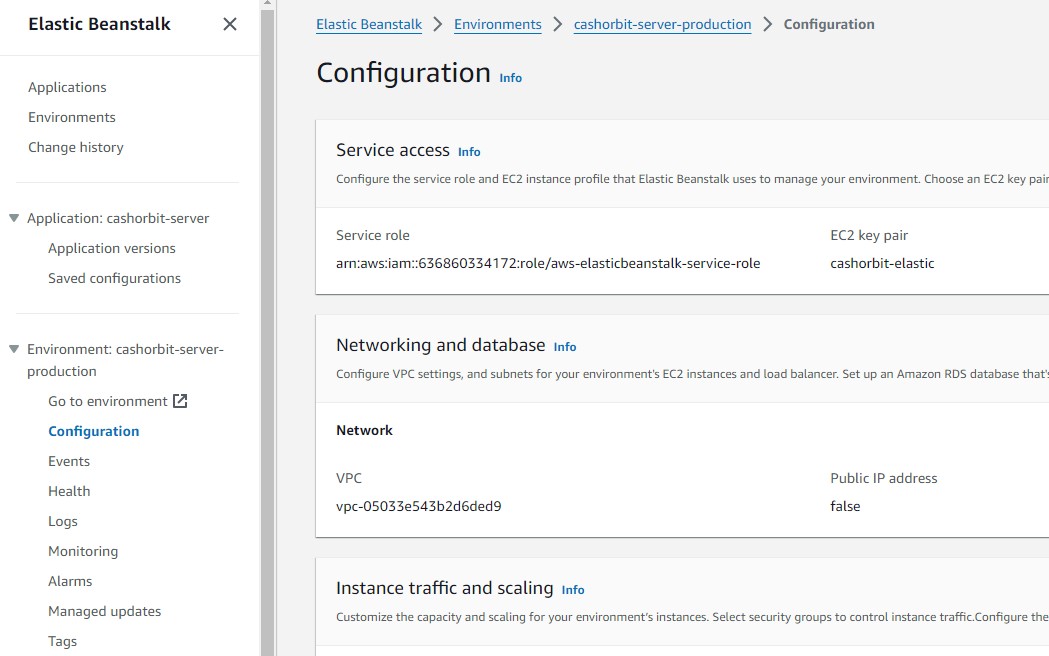
All environment variables needed by the application are provided in the Environment Configuration, with the exception of the aforementioned client container specific ones. These variables are exposed to the process running the docker container and can be read from the standard process.env.
(scroll to the bottom of the config page to see the environment variables section)
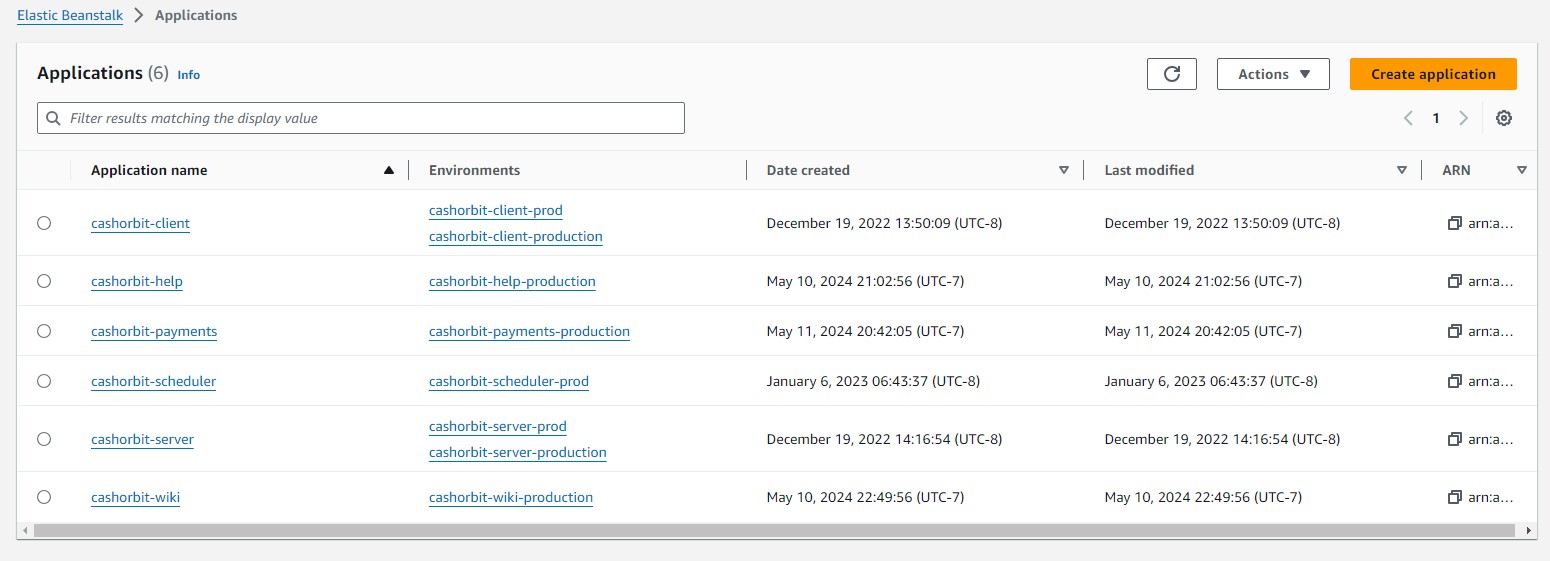
An important thing to note is that there is one Application, that has many Environments. Each environment can be updated individually, and with a specific version. Versions belong to the Application as a whole, so all Environments within that Application can see all the available Versions. In the future, when additional Environments are supported, such as development and staging, these application version tags will be improved to denote which specific environment they are destined for.
Cloudwatch
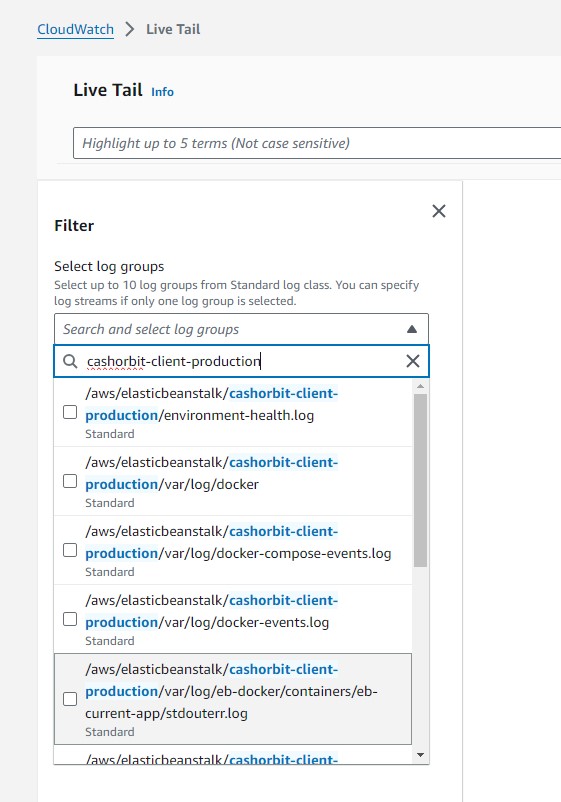
As an addendum to this section, it should be noted that if there is difficulty in deploying a new version, such as repeated crashes or an inability to start the environment, all logs from our current environments can be live-tailed from Cloudwatch. This allows a developer to watch the build and deploy process in real-time to see what exactly is causing the failure. To tail an environment, go to the Cloudwatch Dashboard - Live Tail and using the dropdown, filter by the environment name currently being updated. Depending on the type of crash, different log files may be more or less relevant, but the most consistently useful files to tail are stdouterr, eb-engine, and the docker related files.